Theme
A theme is used to establish a documents identity. They define colors, fonts, and effects that should be used on elements within the document. Character, paragraph, and table styles will typically reference theme colors and fonts to create a customizable stylesheet. This allows the style of documents to be robust should their design need to change in the future.
The name, colors, fonts, and effect style of the document's theme are set using
the Theme() method; this method overrides the properties of the
default theme provided in FluentWriter:
document.Theme("Tropical Ocean", theme => {
  theme.Colors()
    .Dark1("#000000")
    .Light1("#FFFFFF")
    .Dark2("#17406D")
    .Light2("#DBEFF9")
    .Accent1("#0F6FC6")
    .Accent2("#009DD9")
    .Accent3("#0BD0D9")
    .Accent4("#10CF9B")
    .Accent5("#7CCA62")
    .Accent6("#A5C249")
    .Hyperlink("#F49100")
    .FollowedHyperlink("#85DFD0");

  theme.Fonts()
    .Headings("Arial")
    .Body("Arial");

  theme.EffectStyle(EffectStyle.Glossy)
});
Colors
Theme colors define a palette that can be referenced when styling elements of a document. There are twelve theme colors: six accent colors, two dark colors, two light colors, a hyperlink color, and a followed hyperlink color. The following code illustrates how the document's theme colors are defined:
theme.Colors()
  .Dark1("#000000")   // ← Dark foreground color.
  .Light1("#FFFFFF")  // ← Light foreground color.
  .Dark2("#17406D")   // ← Dark background color.
  .Light2("#DBEFF9")  // ← Light background color.
  .Accent1("#0F6FC6") // ← Primary accent/brand color.
  .Accent2("#009DD9") // ← Secondary accent/brand color.
  .Accent3("#0BD0D9") // ← Tertiary accent/brand color.
  .Accent4("#10CF9B")
  .Accent5("#7CCA62")
  .Accent6("#A5C249")
  .Hyperlink("#F49100")
  .FollowedHyperlink("#85DFD0");
The theme colors are referenced using the properties in the ThemeColor
class. For example, the following code specifies that the paragraph text should
be the Accent1 color:
content.Paragraph("\"Well done is better than well said.\"")
  .FontColor(ThemeColor.Accent1)
  .IndentLeft(1)
  .Italic();
Tints and shades can be used in combination with theme colors to create an expansive color pallette. Using theme colors along with their tints and shades is explained in the Colors article.
Fonts
Theme fonts designate what font families should be used for headings and body text. These fonts are also referred to as the major and minor fonts, respectively. The following code demonstrates how these fonts are defined:
theme.Fonts()
  .Headings("Times New Roman")
  .Body("Arial");
The defined values are referenced using the the ThemeFont enum when
setting the font family in a style, paragraph, or run of text. For example, the
following code specifies that the paragraph font should be the theme heading
font (i.e., Times New Roman in this case):
content.Paragraph("Invoice #867")
  .FontFamily(ThemeFont.Headings)
  .FontSize(20);
  .Bold();
Effects
The theme effect style defines the default styling that should be applied
drawing elements in the document. The applied effect controls graphical
properties such as shadows, reflections, outer glow, soft edges, etc. The theme
effects style is defined using the EffectStyle() method and
specifying a predefined option from the EffectStyle enum:
theme.EffectStyle(EffectStyle.Glossy);
The following table summarizes the available options:
| Effect Style | Description |
|---|---|
Office
|
The default style applied to new documents created in Microsoft Office. This is also the default effects style used in FluentWriter. |
OfficeLegacy
|
The default style used in Microsoft Office from 2007 to 2010. |
BandedEdges
|
Creates a "framed" appearance by applying a striped, banded pattern or gradient like effect around the edges of objects created. |
ExtremeShadow
|
Creates an illusion that objects are elevated above the paper by applying bold exaggerated shadows. |
FrostedGlass
|
Creates an illusion of frosted/etched glass on objects by applying a translucent background and a slight blur filter. |
Glossy
|
Creates an illusion of a shiny surface on objects by applying a gradient that mimics light reflection. |
GlowEdge
|
Creates an illusion that objects are back illuminated/glowing. |
Inset
|
Creates an illusion that objects are pressed into the document surface. |
MilkGlass
|
Creates an illusion of translucent frosted glass with a soft "milky" opacity. |
Reflection
|
Creates a mirrored reflection below objects that fades out gradually. |
Riblet
|
Applies a decorative ribbed 3D style to objects. |
SmokeyGlass
|
Creates an illusion of translucent frosted glass with a soft "smokey" opacity. |
SubtleSolids
|
Applies solid colors or gradients on objects that are designed to be muted, smooth, and not overpowering, giving a clean, professional, and minimalist look. |
TopShadow
|
Creates an illusion that an object is illuminated from underneath by applying a shadow effect that is offset from the the top. |
Defaults
Documents that aren't created from a template include a default theme named "FluentWriter". This theme has the following properties:
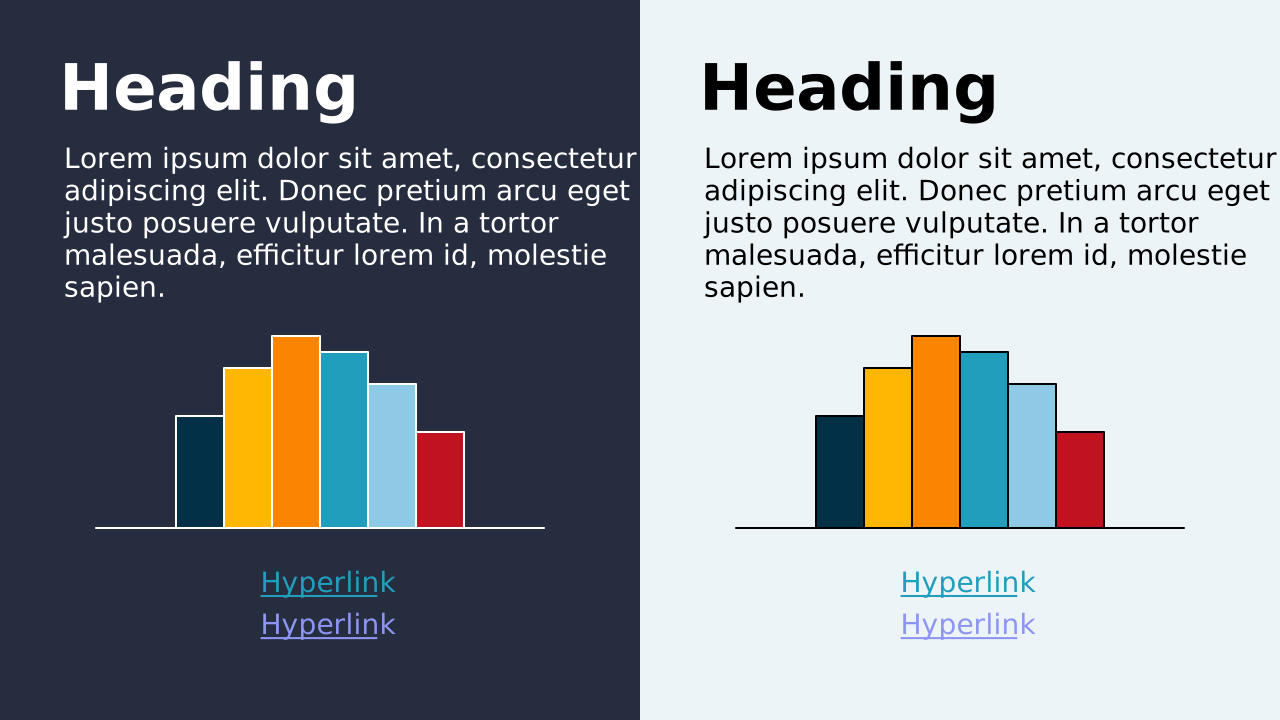
| Theme Color | Default Value |
|---|---|
| Dark 1 | #000000 |
| Light 1 | #FFFFFF |
| Dark 2 | #262D3F |
| Light 2 | #ECF4F7 |
| Accent 1 | #023047 |
| Accent 2 | #FFB703 |
| Accent 3 | #FB8500 |
| Accent 4 | #219EBC |
| Accent 5 | #8ECAE6 |
| Accent 6 | #C1121F |
| Hyperlink | #219EBC |
| Followed Hyperlink | #8E94F2 |
| Theme Font | Default Value |
|---|---|
| Headings | Arial |
| Body | Arial |
| Effect Style | Default Value |
|---|---|
| - | Office |